
For convenience, we have taken a T-shirt as the variable product and are going to increase its price by 5%.
Let’s get started.
This is the range of T-shirt price before the update.
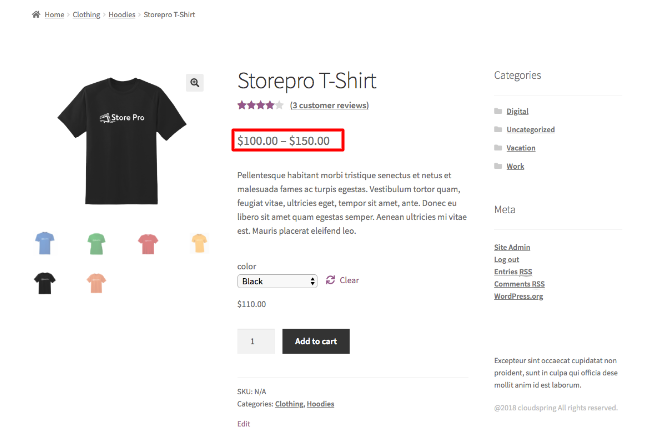
Step 1
- Log in to your WooCommerce store’s dashboard
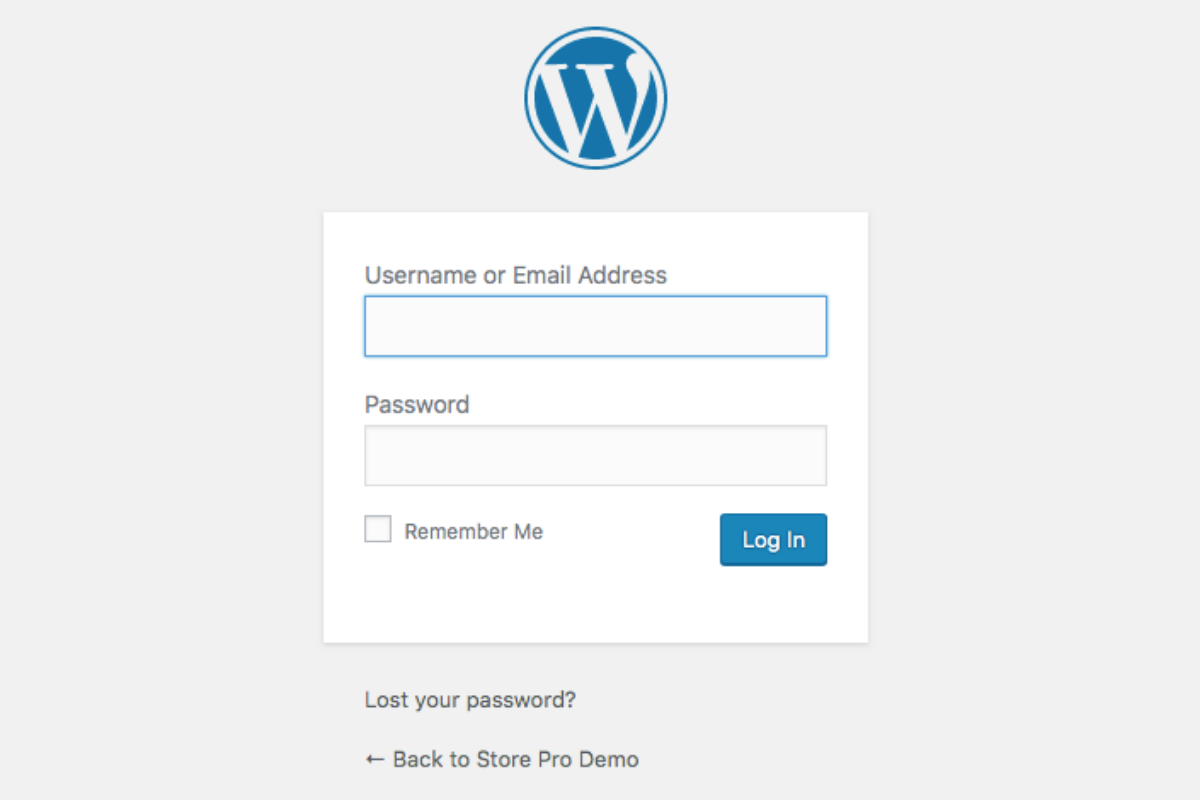
Step 2
- On the dashboard, click products on the left panel

Step 3
- Choose the product you want to edit
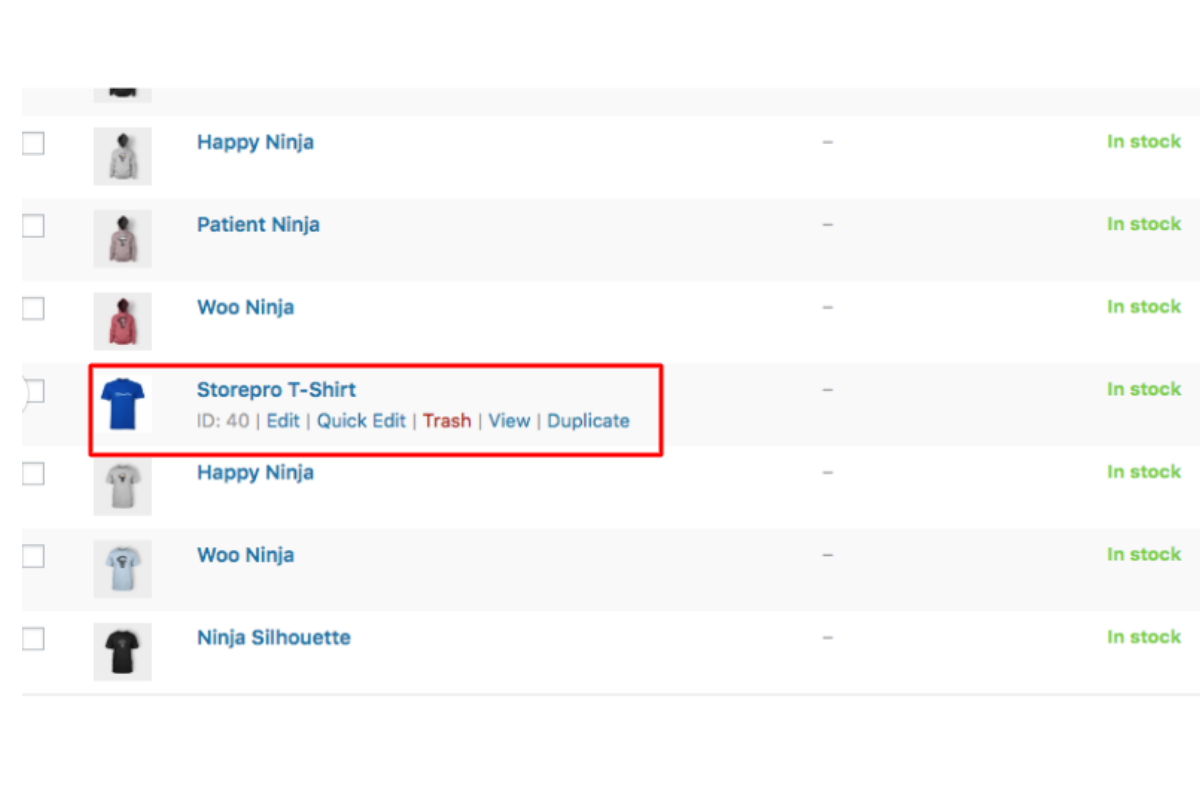
Step 4
- Click the Variations tab from the Product data menu
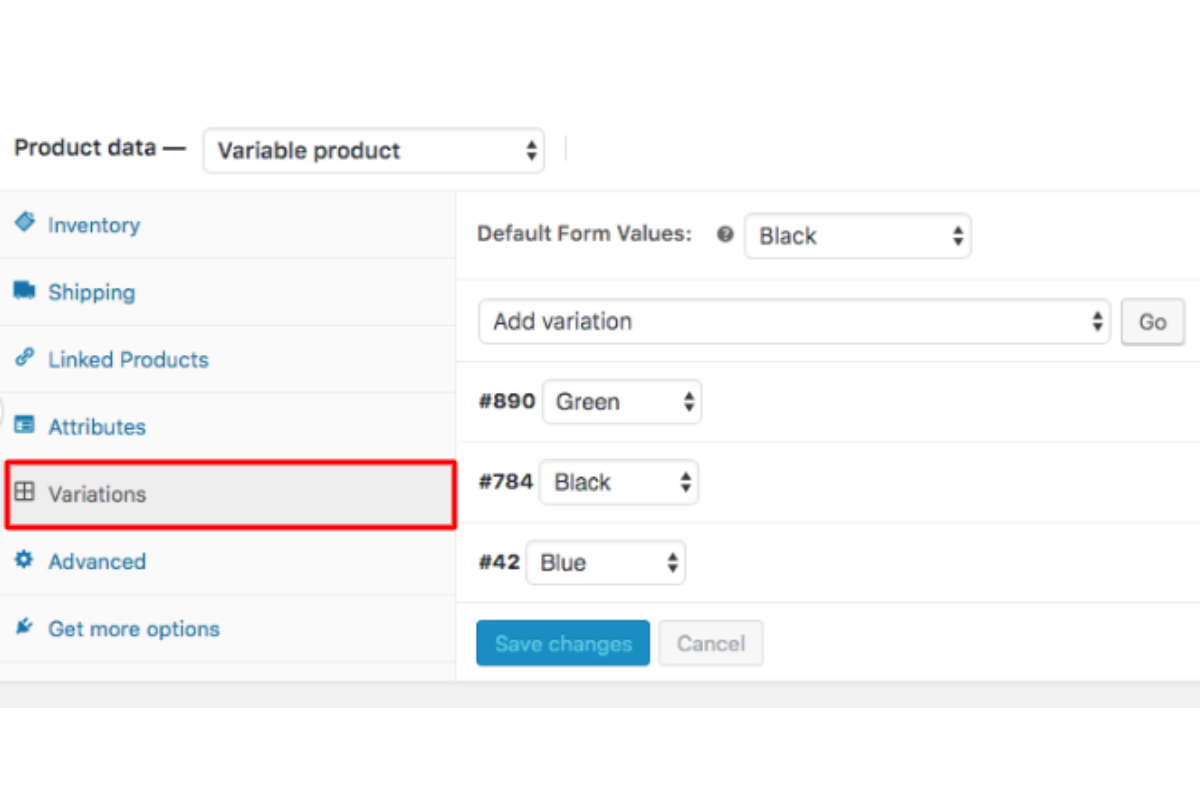
Step 5
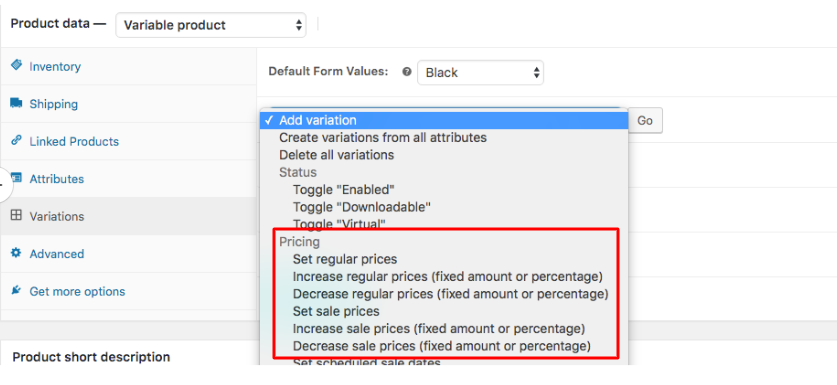
- When you expand the Add Variation dropdown list, you can see the changes that can be made to a product price under Pricing.
- You can increase or decrease the price by a fixed amount or percentage.
- You can set both regular price and sales price.
Step 6
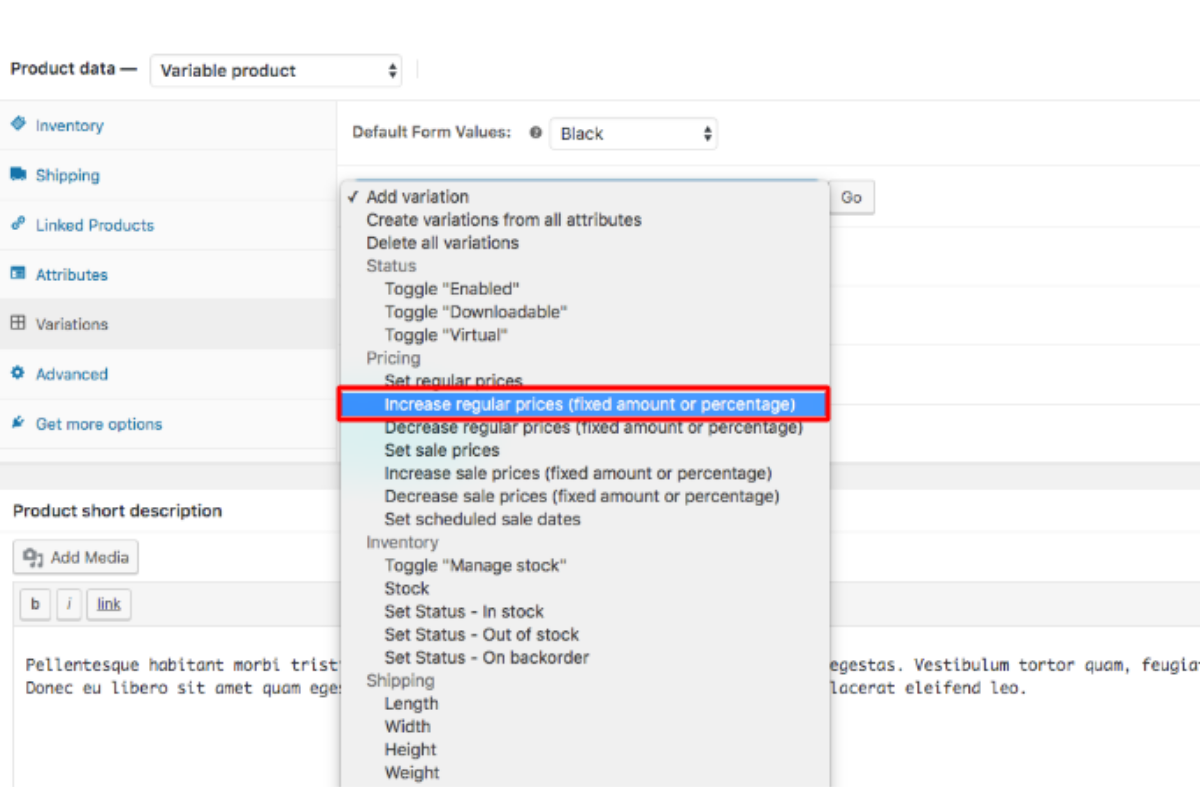
- From the dropdown list, go to Pricing> Increase the regular prices.
(since we want to increase the price of the T-shirt) - Then Click Go and save changes
Step 7
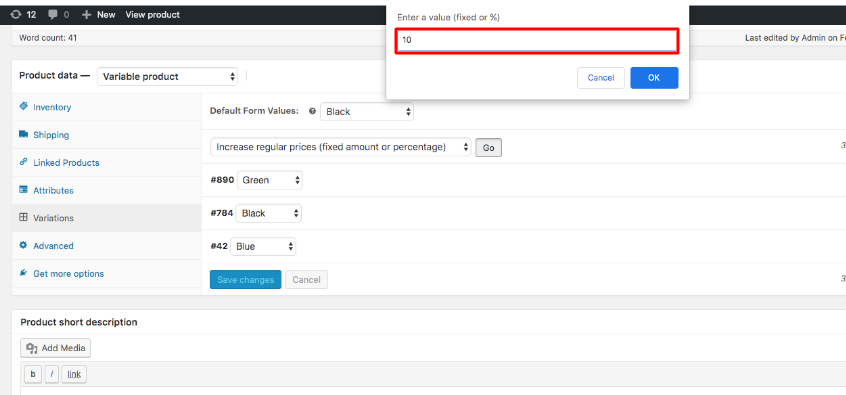
- Generally, we enter a value in the alert box (discount percentage/ offers) and save changes.
- For example, if you want to increase a product’s price by a fixed value of $10, you can just enter 10 in the alert box as shown below.
- Now, if you would like to increase the price of a product by a certain percentage you can enter the value with a % sign. Here we are going to increase the price by five percent. So just type 5% as shown below and press OK.
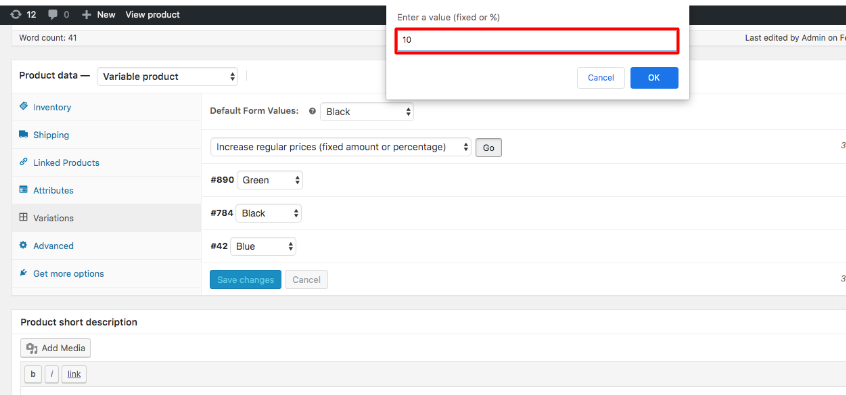

So, the 5% increase in price is applied to all variations in this category.
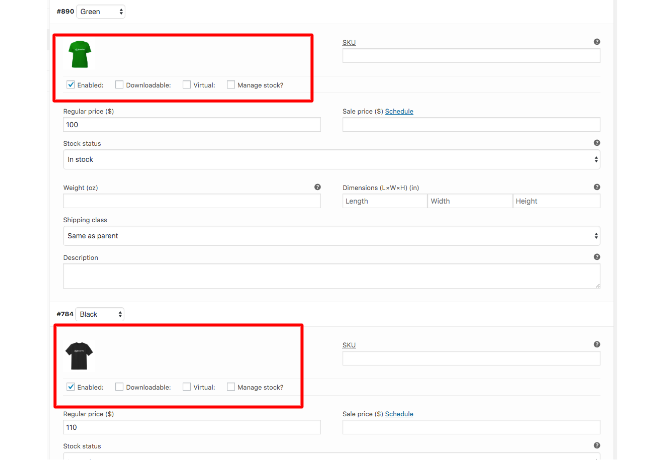
Now let’s take a look at the product after applying a 5 % increase in price.
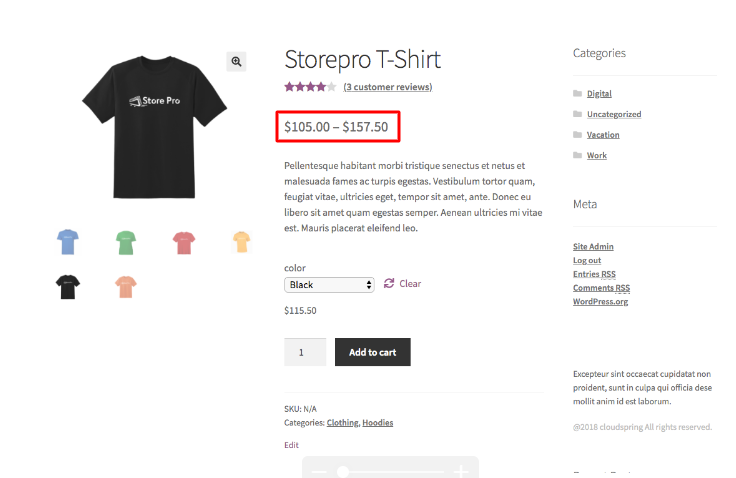
That’s it. Now you have learnt how to change the price of a variable product.
